


How to Create a Talking AI Bill Gates Avatar with Dreamface
- Avatar Video
- AI image generator
- AI Video
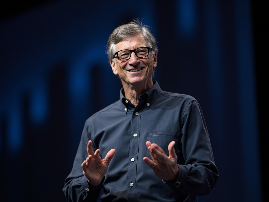
Ever wanted to have one of the world's greatest tech visionaries and philanthropists share your message? Imagine creating a virtual Bill Gates to explain a complex topic, deliver a keynote on global health, or simply share some wisdom with your audience. With the power of AI, this is now a reality.
In this guide, we'll walk you through how to create a realistic, talking AI Bill Gates using the powerful and intuitive features of Dreamface. We'll start by generating a unique image of Bill Gates with the AI Image tool and then bring him to life with the incredibly swift and dynamic Avatar 3.0 Fast feature.
Step 1: Crafting Your AI Bill Gates with AI Image
The first step is to create a high-quality, unique image of Bill Gates. Dreamface's AI Image generator makes this process incredibly simple and allows for a great deal of creative freedom.
How to get started:
1)In Dreamface, navigate to the AI Image feature.
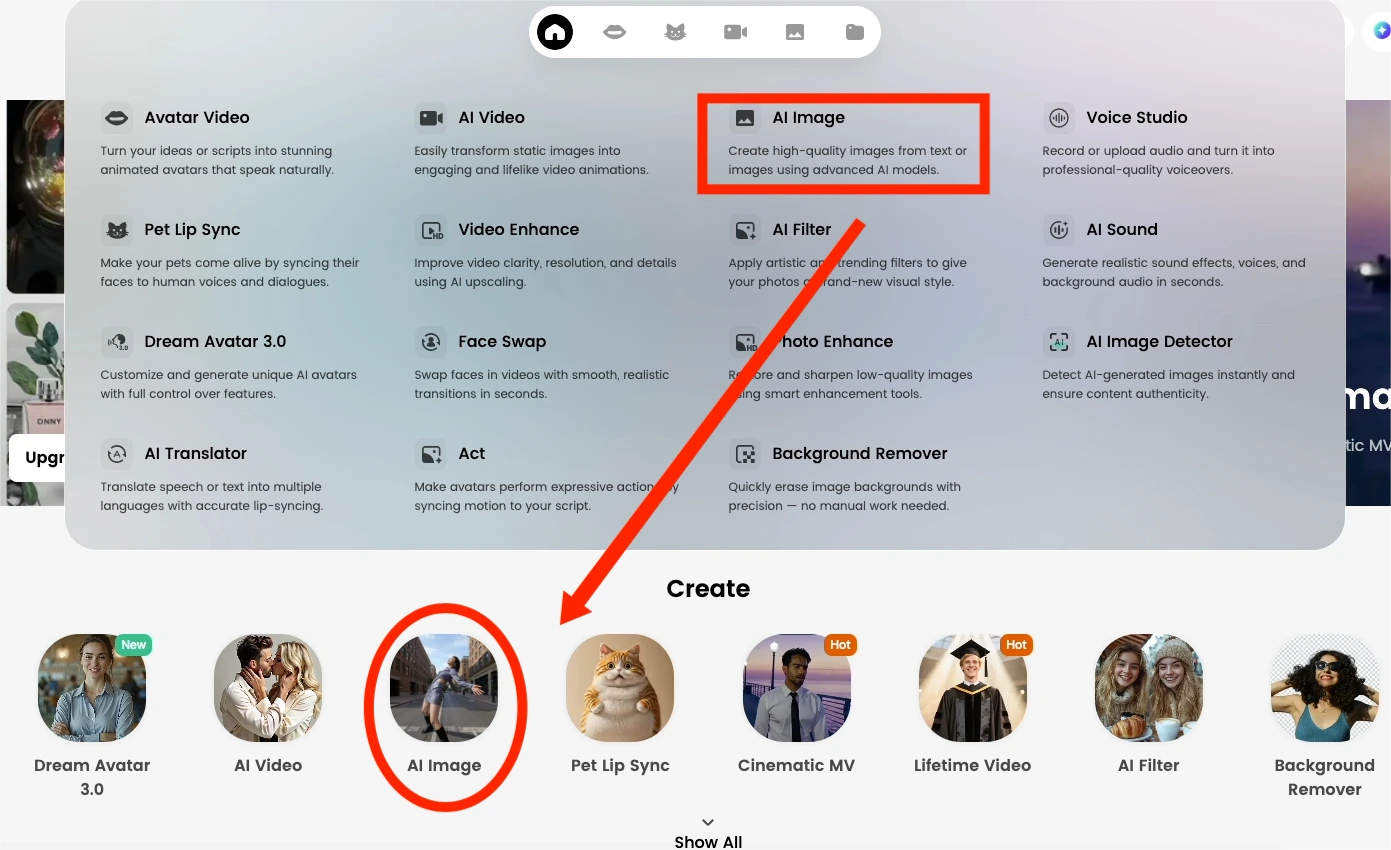
2)Describe your vision. In the text prompt, be as descriptive as possible to get the best results. Think about the setting, attire, and expression you want your AI Bill Gates to have. For example, you could try prompts like:"A photorealistic portrait of Bill Gates in a modern library, looking thoughtfully at the camera."
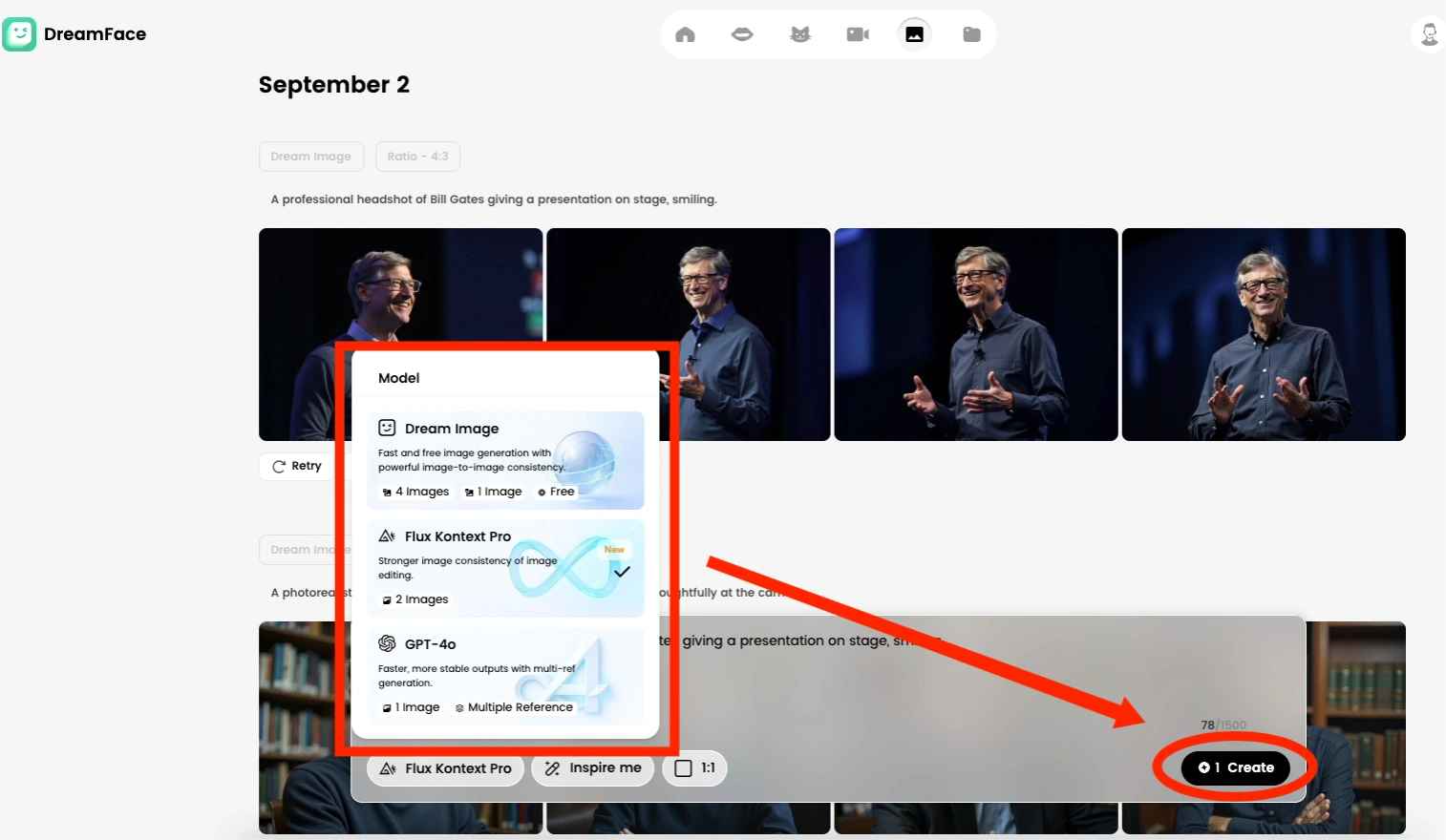
3)Generate and refine. Tap the generate button and watch as the AI brings your description to life. You can generate multiple images and choose the one that best fits your vision. Feel free to tweak your prompt to get the perfect result.
Once you have an AI-generated image of Bill Gates that you're happy with, it's time for the real magic to begin.
Step 2: Bringing Your AI Bill Gates to Life with Avatar 3.0 Fast
Now that you have your static image, it's time to make your AI Bill Gates talk, express, and engage. This is where Dreamface's cutting-edge Avatar 3.0 Fast feature comes in. This isn't just a simple lip-syncing tool; Avatar 3.0 animates the entire persona for a more dynamic and believable performance.
Animating your AI Bill Gates:
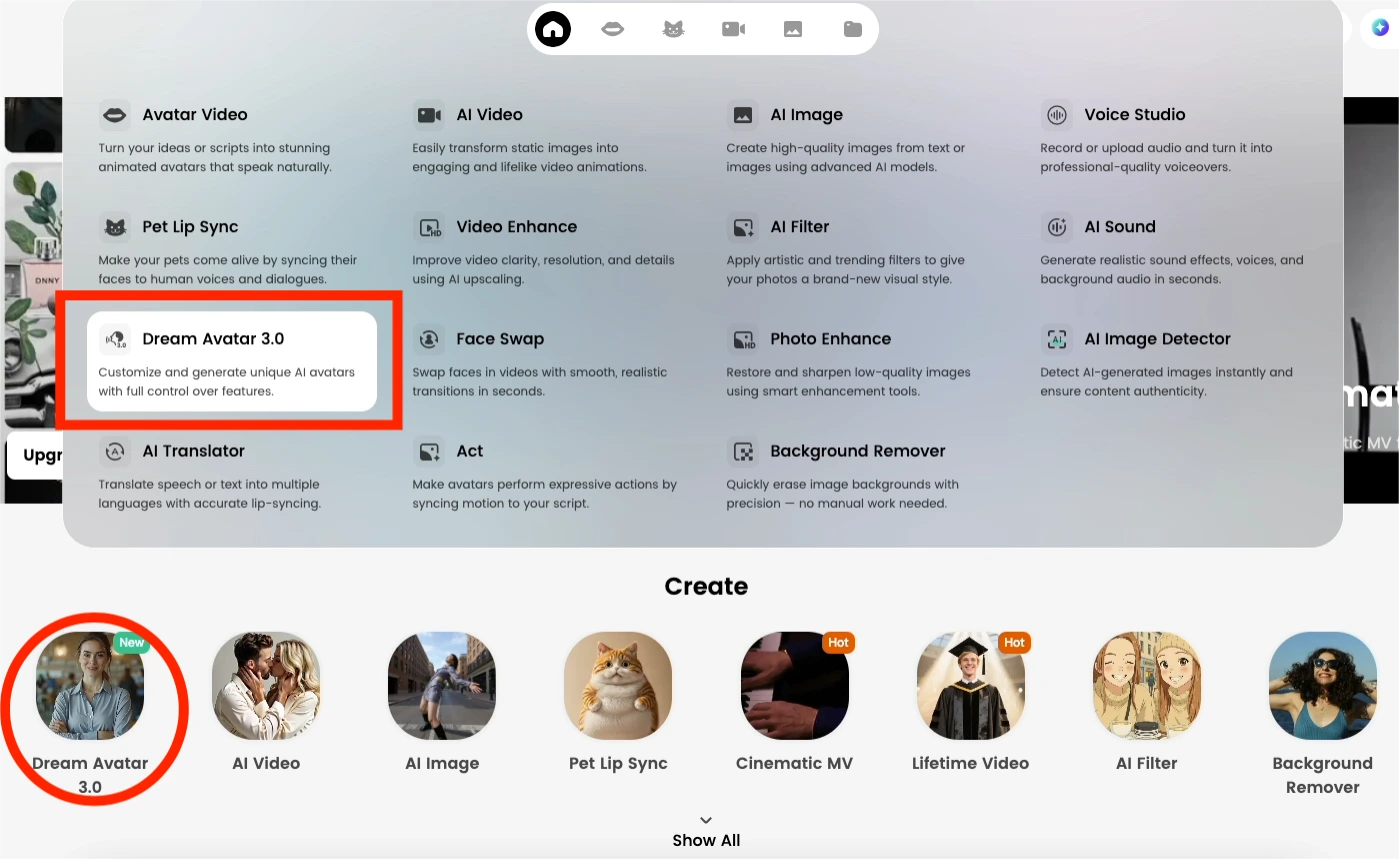
1)Select your AI-generated image. In Dreamface, choose the "Dream Avatar 3.0" or a similar animation feature and upload the Bill Gates image you just created.
2)Give your Avatar a voice. You have two primary options for the audio:Text-to-Speech: Simply type or paste the script you want your AI Bill Gates to say. Dreamface offers a selection of AI-generated voices. You can choose one that you feel best captures his calm and insightful tone.Upload Your Own Audio: For a more personalized touch, you can record your own voice or a pre-existing audio file. This is perfect for creating educational content, insightful commentary, or custom messages for your projects.
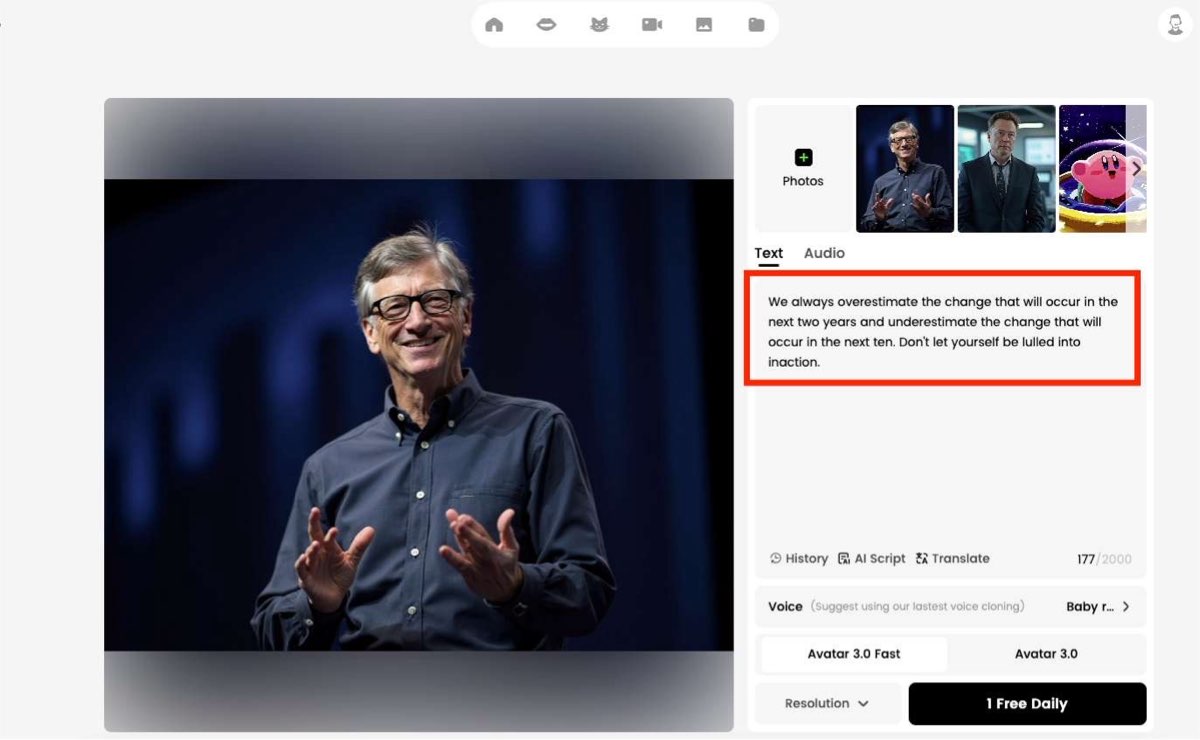
3)Generate the animation with Avatar 3.0 Fast. With your image and audio in place, it's time to let the AI work its wonders. The "Fast" in Avatar 3.0 signifies the impressive speed at which Dreamface can process and deliver your animated video. The AI will intelligently analyze the audio and sync the lip movements and facial expressions of your AI Bill Gates to create a seamless and natural-looking animation.
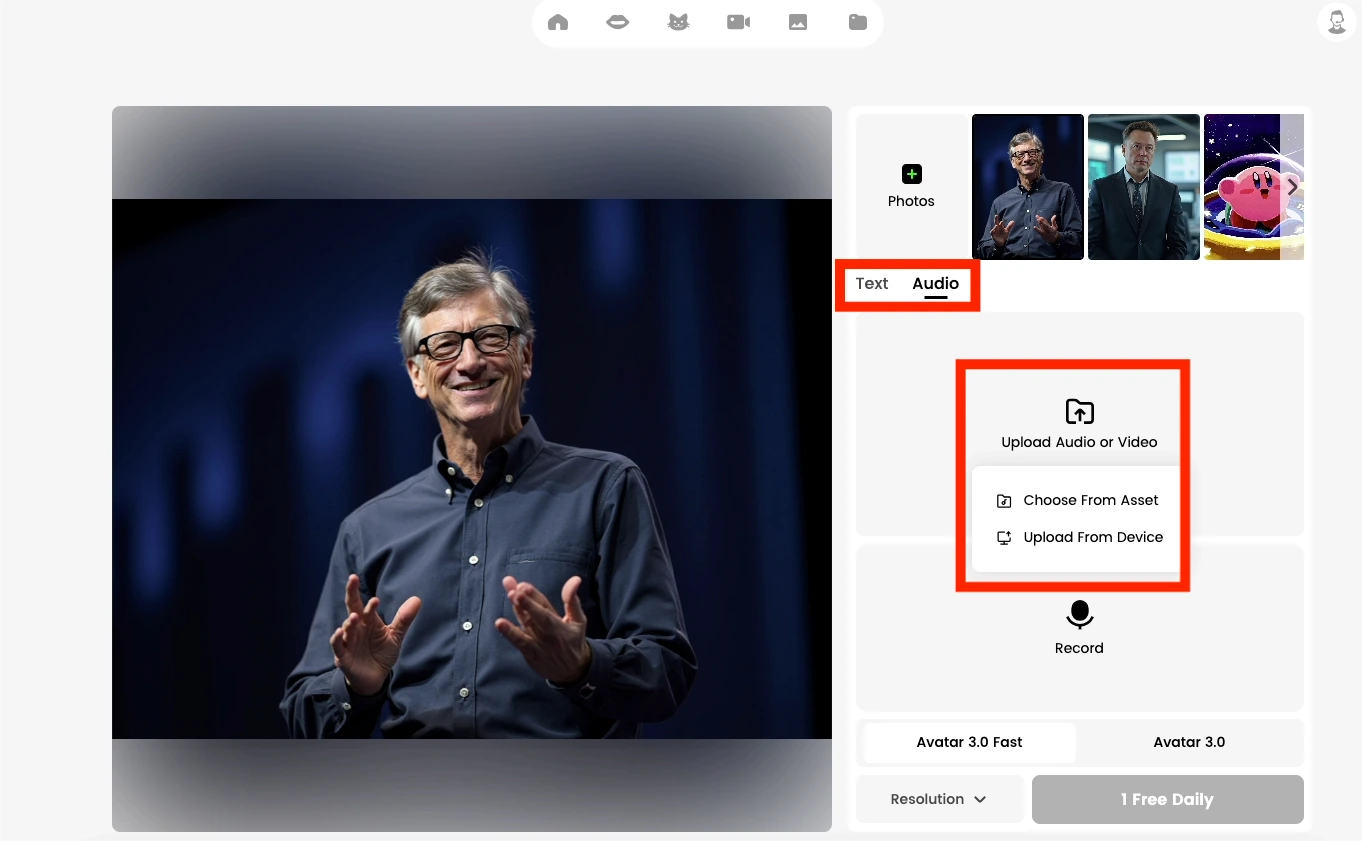
4)Review and share. In a short amount of time, your AI Bill Gates will be ready. You'll have a video of him delivering your scripted lines with lifelike expressions. From here, you can easily share your creation on social media, incorporate it into presentations, or use it in your next video project.
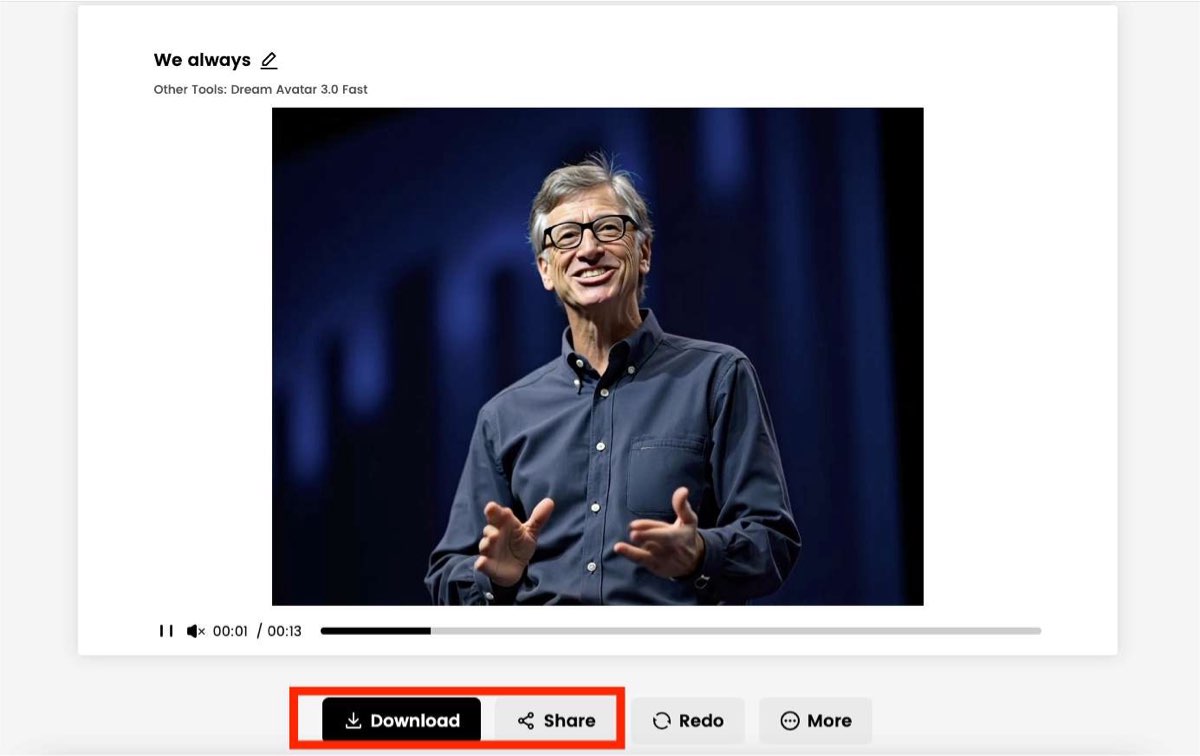
The Power of AI at Your Fingtrtips
By combining
Dreamface's AI Image
and
Avatar 3.0 Fast
features, you have a powerful toolkit for content creation. This process isn't just limited to creating an AI Bill Gates; you can apply these steps to generate and animate avatars of historical figures, fictional characters, or even your own original creations.
The intuitive interface and rapid generation times of Dreamface make it accessible for everyone, from marketers and educators to content creators and hobbyists. So why not dive in and start creating your own AI-powered conversations today? The only limit is your imagination.
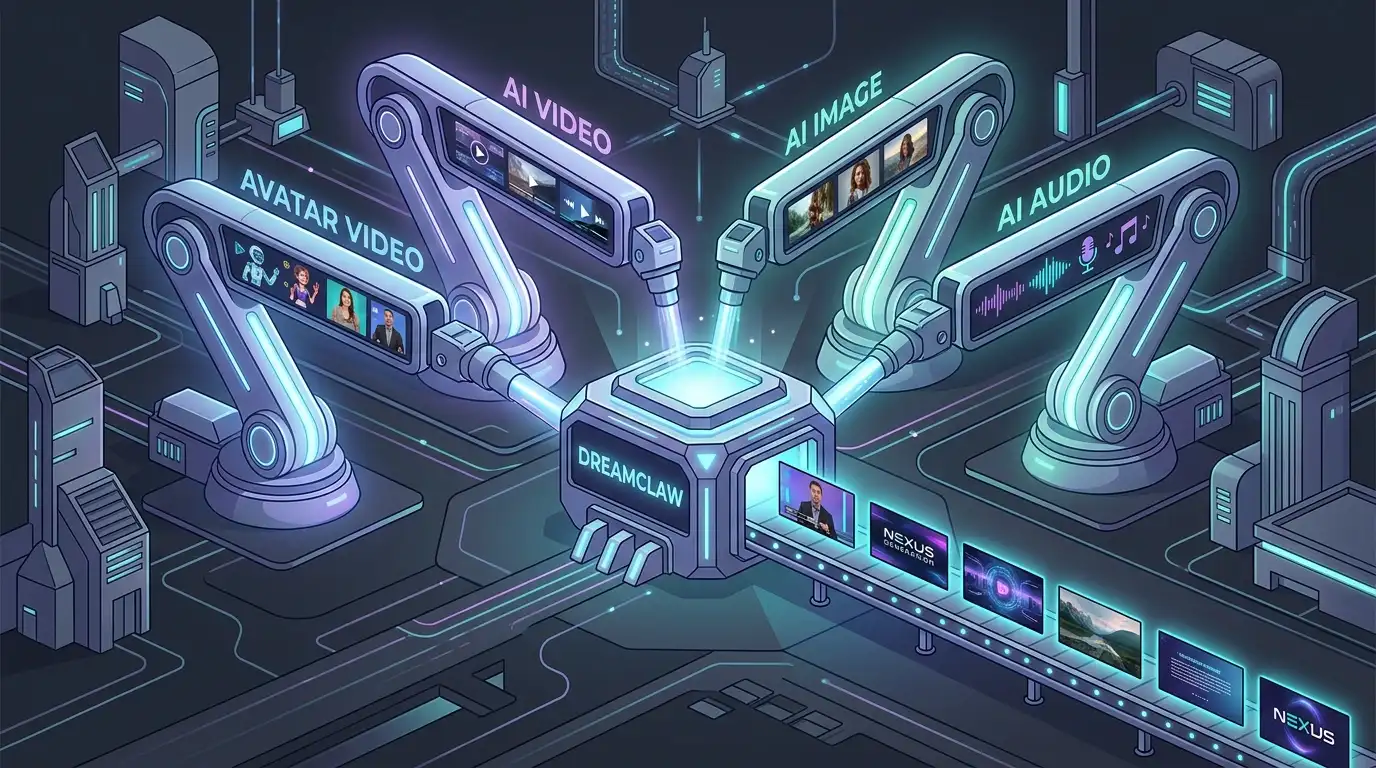
DreamClaw Agent: The All-in-One AI Automation Engine for DreamFace
Mar 04, 2026.jpg)
Seedance 2.0 Prompt Guide: The Ultimate Template for Cinematic AI Videos
Mar 03, 2026
Seedance 2.0 Prompt Guide: The Complete 2026 AI Video Creation Handbook
Feb 28, 2026
Google Nano Banana 2 Review: Pro-Grade Image Generation at Flash-Level Pricing
Feb 26, 2026
Seedance 2.0 Prompt Guide: The Ultimate Template for Cinematic AI Videos
Stop generating "slideshow" videos. This guide provides a creator-first framework for Seedance 2.0, focusing on the two pillars of high-quality AI video: logical structure and cinematic camera movement. Learn how to move beyond basic descriptions by using multi-shot templates, emotional modifiers, and stability constraints to create professional, immersive content. Stop asking if your prompt is detailed—start asking if your video is worth watching.
By Leila 一 Sep 01, 2025- AI Video
- Text-to-Video
- seedance 2.0
- Image-to-Video
Seedance 2.0 Prompt Guide: The Complete 2026 AI Video Creation Handbook
In February 2026, ByteDance officially released its latest AI video generation model — Seedance 2.0. Dubbed by many in the industry as “the most powerful AI video tool on Earth,” Seedance 2.0 is rapidly reshaping the video creation landscape.
By Leila 一 Sep 01, 2025- AI Video
- seedance 2.0
- Text-to-Video
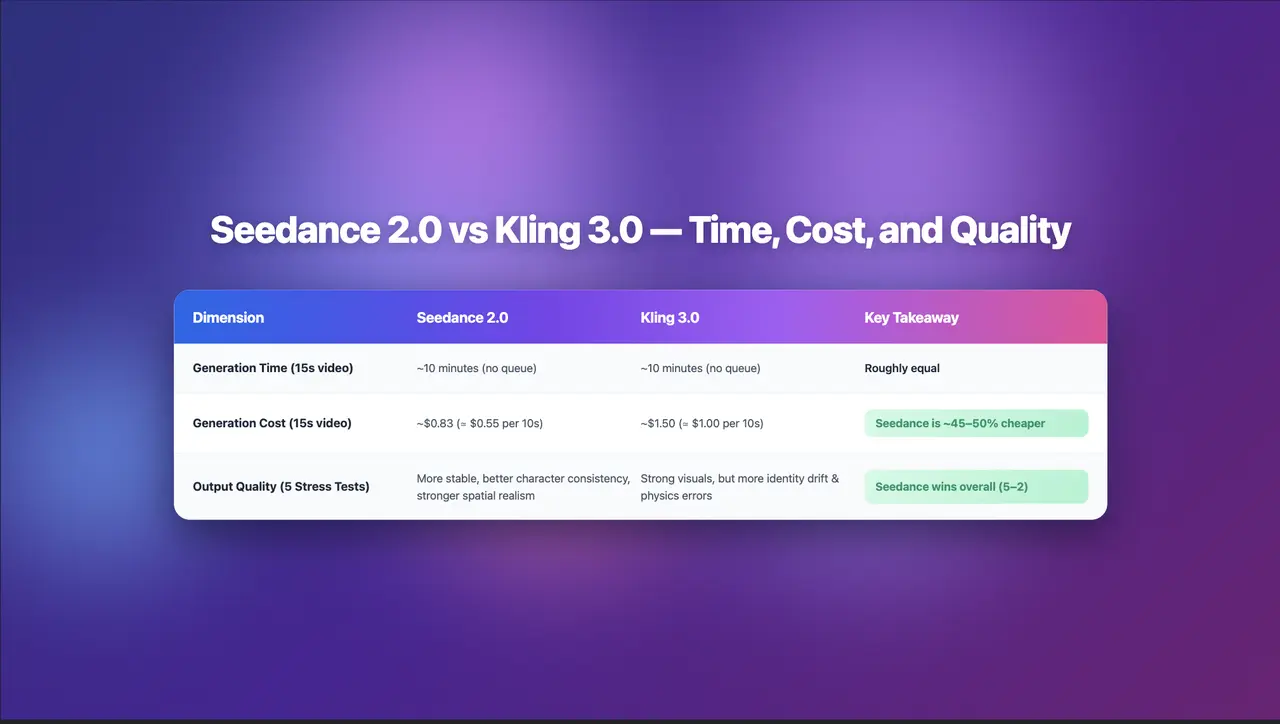
Seedance 2.0 Review: Stress-Testing Character Consistency Across 5 Extreme AI Video Scenarios
Seedance 2.0 recently launched a low-key update claiming to solve multi-angle continuity, smooth transitions, and consistent characters. To see whether it lives up to the hype, I ran five extreme stress tests, using the same prompts across Seedance 2.0 and Kling 3.0.
By Leila 一 Sep 01, 2025- AI Video
- Text-to-Video
- Image-to-Video
- seedance 2.0
- X
- Youtube
- Discord