


Flux Kontext Prompts for AI Image Inpainting
- AI image generator
- Flux-Kontext
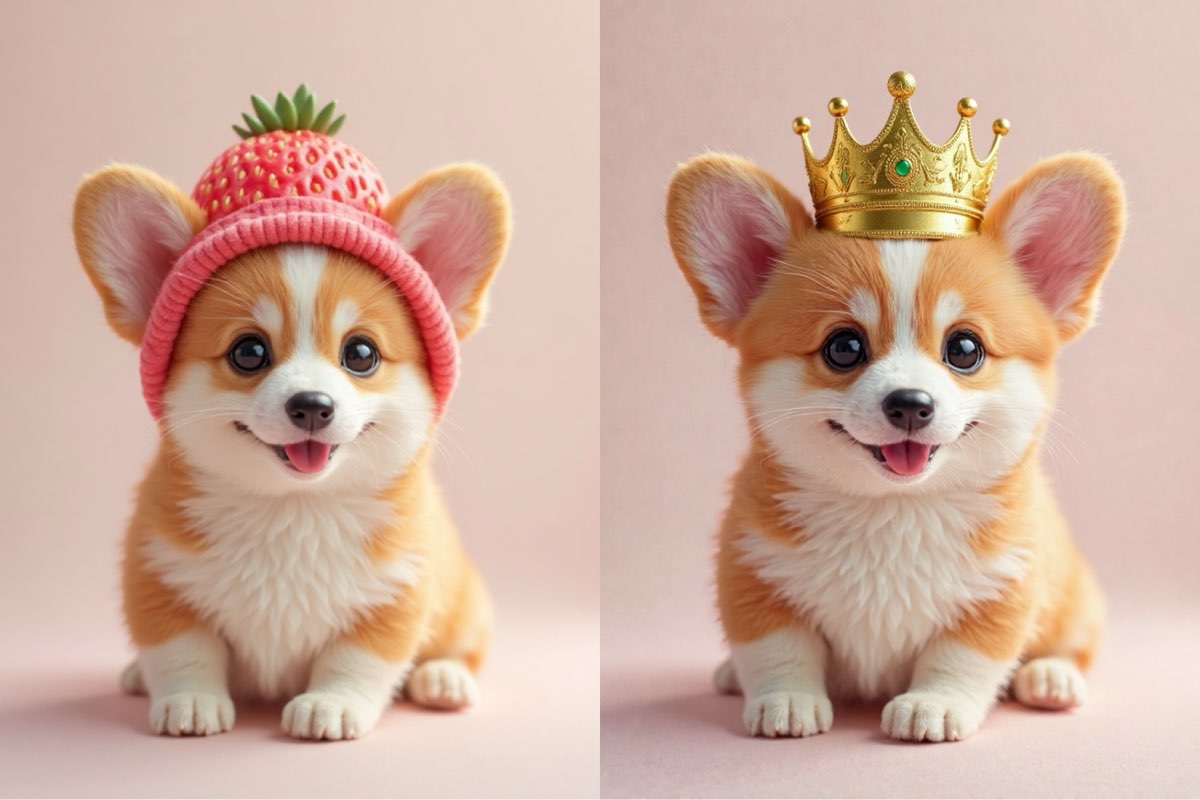
Is there a photo you adore that's just one tiny detail away from perfection? Maybe you want to swap an object for something more creative, or alter an accessory to better fit your vision. With AI Inpainting, you can make these hyper-specific changes, editing the small parts of an image while leaving everything else perfectly intact.
This technology gives you surgical control over your photos. By writing clear and targeted commands, you can modify, replace, or enhance any element you choose. This guide will teach you the essential prompting techniques to master inpainting, ensuring you get flawless and believable results every time.
Note that the effects achievable with the prompts below can be created for free using Dreamface - a free platform to realize your AI image edits.
Flux Kontext AI Inpainting Prompts
Prompt 1:
Change the pink strawberry hat on the corgi's head to a tiny, shiny golden crown, while keeping the corgi's happy expression, fluffy fur, and pose exactly the same.
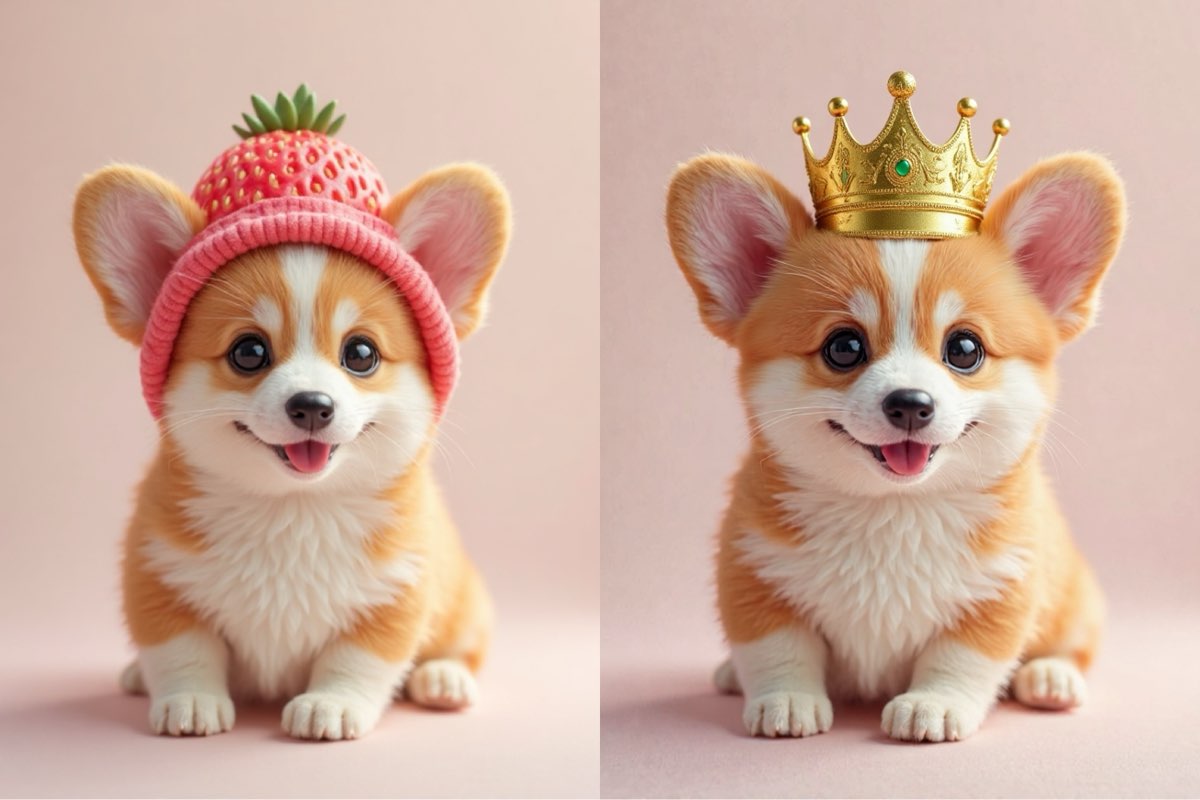
Create this image for free using Dreamface!
Prompt 2:
Replace the orange slice on the capybara's head with a cute yellow rubber duck, while keeping the capybara's calm expression, the water, and the background environment exactly the same.
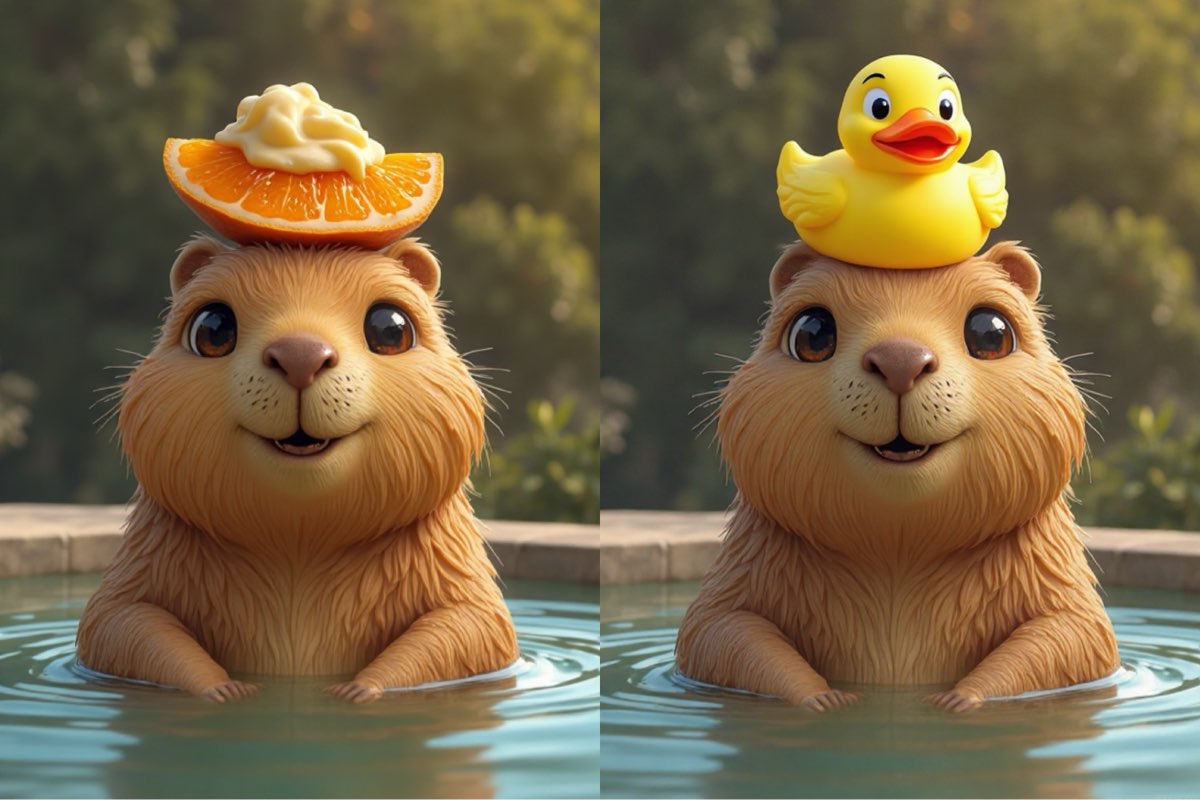
Create this image for free using Dreamface!
Prompt 3:
Change the green leaf umbrella that Totoro is holding to a glowing, translucent mushroom, while keeping Totoro's body, expression, and the lush green forest background exactly the same.
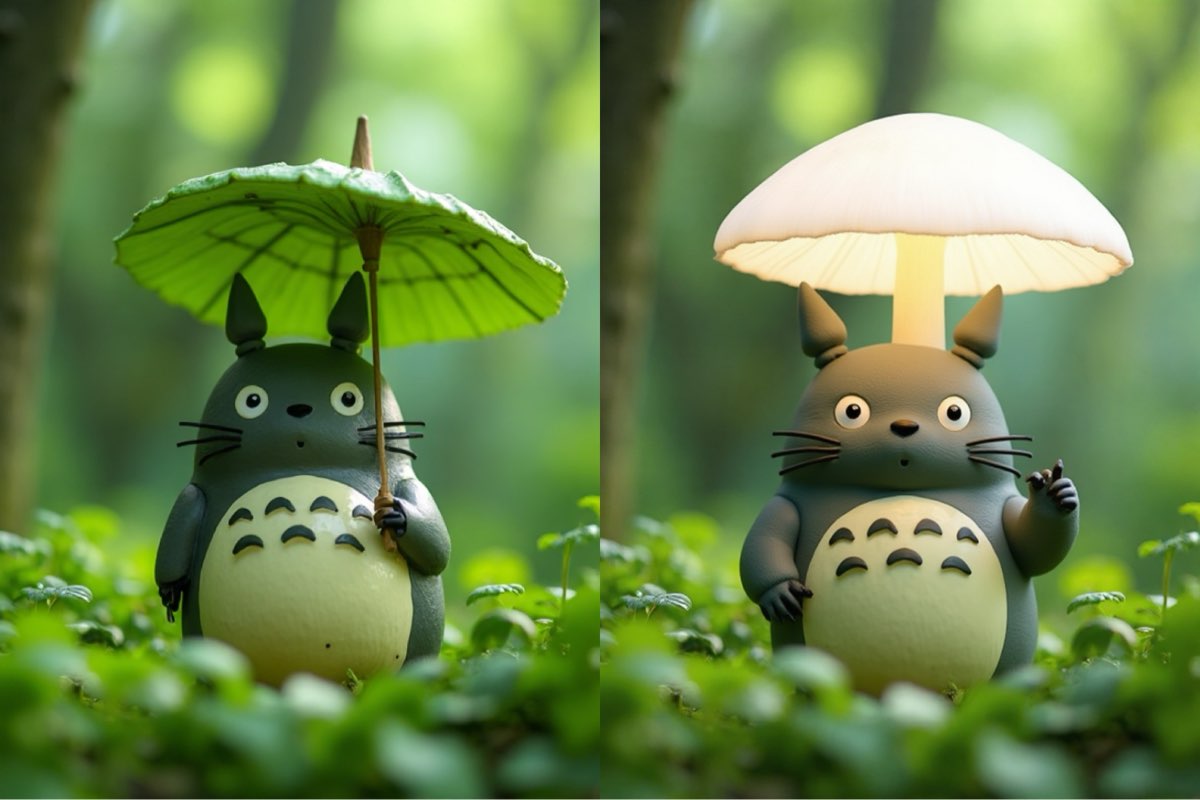
Create this image for free using Dreamface!
How to Write Effective Inpainting Prompts
Unlike broad edits, inpainting is about focus and precision. Your prompt must tell the AI exactly what to change and, just as importantly, what to leave alone.
- Pinpoint Your Target: Start your prompt by clearly identifying the object you want to modify. Be direct and specific, for instance: "Change the pink strawberry hat..." or "Replace the orange slice on the capybara's head..."
- Describe the New Object Vividly: Provide a rich description of what you want to introduce. Don't just ask for a "crown"; specify a "tiny, shiny golden crown." The more detail you provide, like "a glowing, translucent mushroom," the better the AI can create your vision.
- Preserve Everything Else: This is the most crucial command. To prevent unwanted changes, you must explicitly state what should remain the same. Use a concluding phrase like, "...while keeping [the subject's] expression, [the background], and [other key elements] exactly the same."
Perfecting the Details
As you've seen, successful inpainting is a matter of surgical precision. It’s about giving the AI a clear, two-part command: modify this one specific thing, and keep everything else untouched. This simple structure gives you the power to perfect any photo.
The creative potential is limitless, from minor fixes to whimsical transformations. The best way to learn is by doing. Take these prompts to Dreamface, upload your own images, and start making your own magical edits for free. What small tweak will make your favorite photo unforgettable?
15 Seconds from Images to Talking Avatars: How DreamFace Powers Next-Gen Creativity
Sep 10, 2025
Bringing Avatars to Life: How PixVerse V5 and DreamFace Avatar Video Transform AI Storytelling
Sep 11, 2025
How to Create a 3D Figure from a Photo with Nano Banana
Sep 08, 2025
How to Use Google Nano Banana: Revolutionizing Your Photo Editing Experience
Sep 07, 2025
How to Create a Talking AI Bill Gates Avatar with Dreamface
In this guide, we'll walk you through how to create a realistic, talking AI Bill Gates using the powerful and intuitive features of Dreamface. We'll start by generating a unique image of Bill Gates with the AI Image tool and then bring him to life with the incredibly swift and dynamic Avatar 3.0 Fast feature.
By Penelope 一 Jul 10, 2025- AI Video
- Avatar Video
- AI image generator
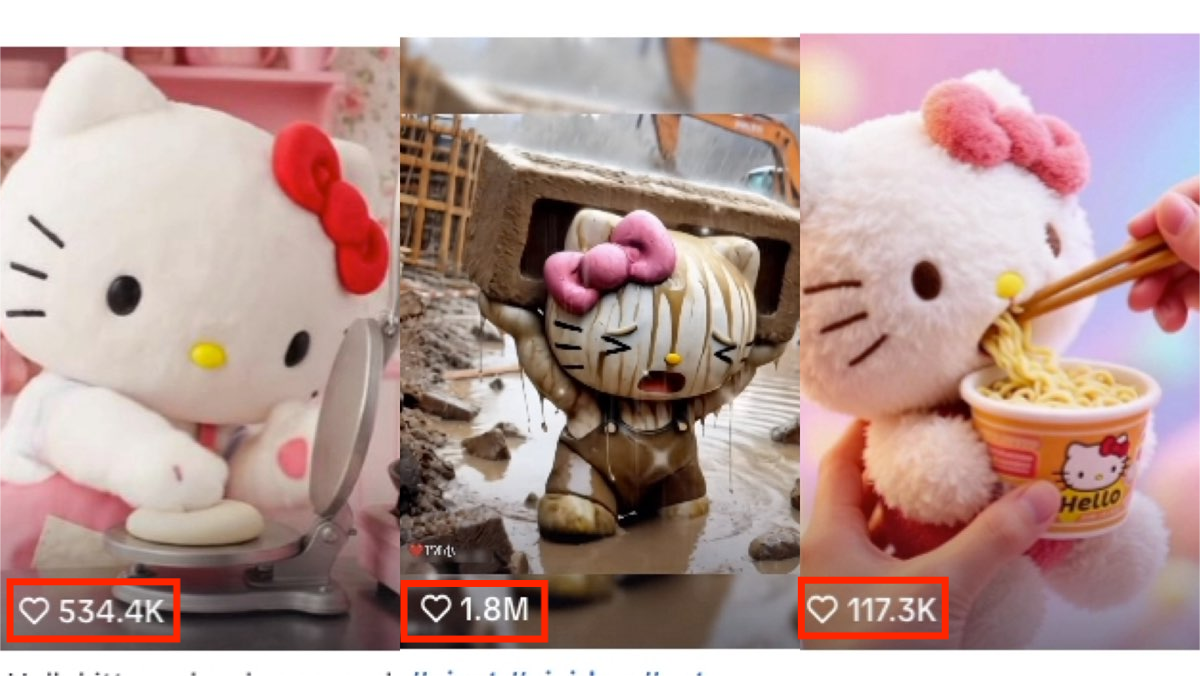
How to Create a Viral AI Hello Kitty Video: A Step-by-Step Guide
In this tutorial, we’ll show you how to make your very own AI avatar video featuring Hello Kittys with animated expressions. Follow these steps to craft a video that could easily become your next viral hit.
By Penelope 一 Jul 10, 2025- AI Video
- Photo To Video
- AI image generator
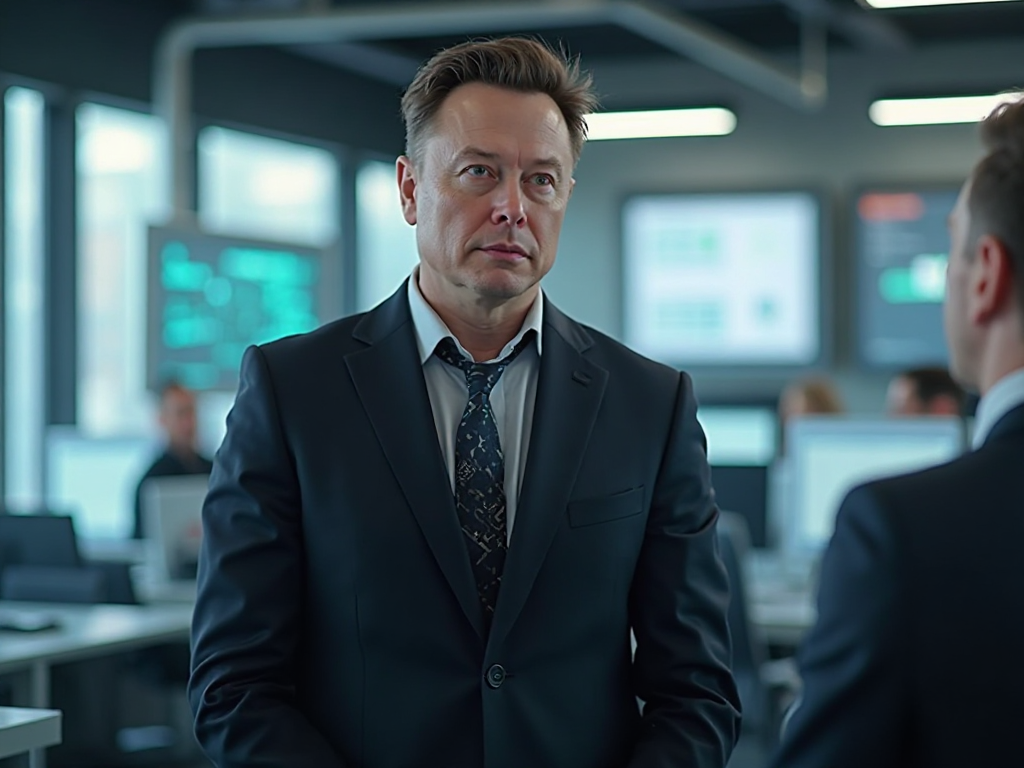
How to Create a Talking AI Elon Musk with Dreamface: A Step-by-Step Guide
In this guide, we'll walk you through how to create a realistic, talking AI Elon Musk using the powerful and intuitive features of the Dreamface app. We'll start by generating a unique image of Elon Musk with the AI Image tool and then bring him to life with the incredibly swift and dynamic Avatar 3.0 Fast feature.
By Penelope 一 Jul 10, 2025- Talking Avatar
- Avatar Video
- AI image generator
- X
- Youtube
- Discord