


How to Create Realistic Lip-Sync Videos with the DreamFace?
- Lip-Sync Video
- Avatar Video
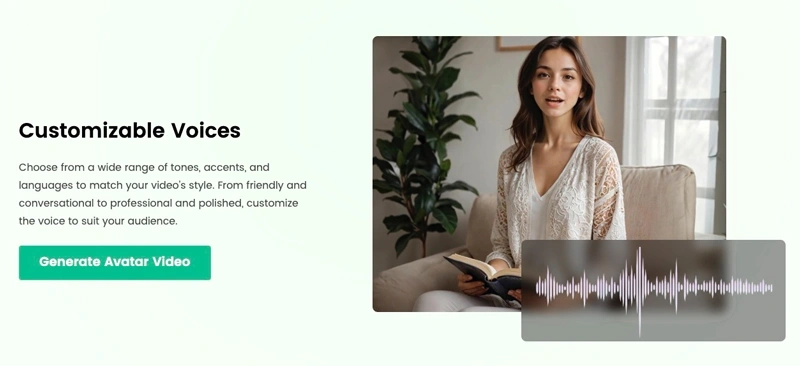
Have you ever wanted to make a still photo sing, talk, or express emotions realistically? With DreamFace, you can use AI-powered animation to bring portraits to life! Whether it’s a famous painting, a childhood photo, or a fictional character, DreamFace allows you to create hyper-realistic lip-sync videos in just a few minutes.
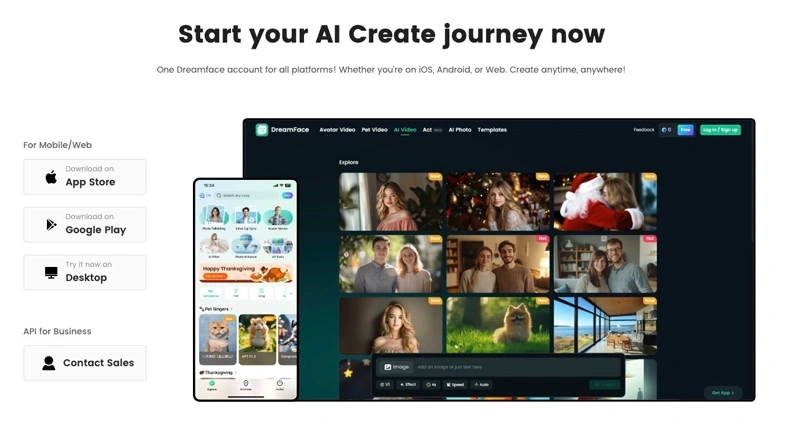
Follow this detailed step-by-step guide to learn how to turn a single image into an engaging, animated video!
Step 1: Upload a High-Quality Photo️
To achieve the most natural and realistic lip-sync effect, you need to select the right photo:
Choose a high-resolution image – The clearer the image, the better the AI can animate facial features.
Use a front-facing portrait – A straight-on view ensures the most accurate lip and head movements.
Avoid obstructions – No sunglasses, hands covering the face, or heavy shadows that might interfere with facial detection.
Make sure the face is well-lit – Natural or even lighting enhances the AI’s ability to track facial movements.
Pro Tip: If using an old or low-quality photo, try enhancing it with AI-powered image upscaling tools before uploading!
Step 2: Choose or Upload an Audio Track
The audio you select determines how your animated face will move. DreamFace offers three ways to add sound:
Preloaded Audio: Pick from a selection of popular songs or pre-set dialogues.
Custom Voice Recording: Record your own voice directly within the app.
Text-to-Speech (TTS): Type any text, and AI will generate realistic speech for your animation.
Pro Tip: For the best results, use audio clips that are clear, with minimal background noise, and between 10-30 seconds long.
Step 3: AI Generates Realistic Lip Movements
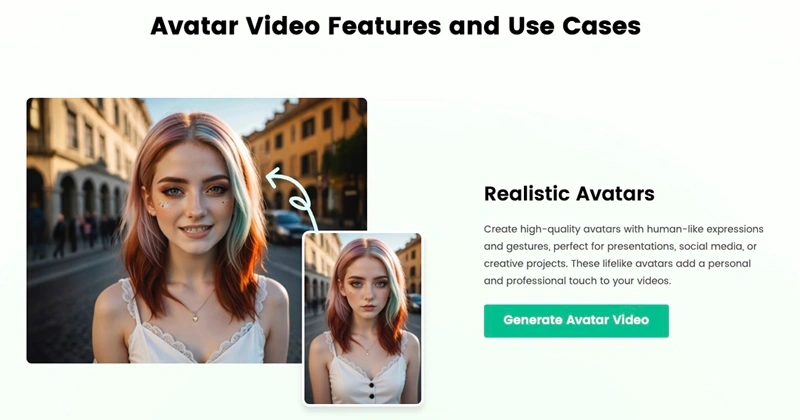
Once your image and audio are selected, DreamFace’s AI analyzes the facial structure and maps the lip movements to sync perfectly with the sound. It also adds natural head tilts, blinks, and expressions to make the animation look even more realistic.
Processing Time: This usually takes just a few seconds, depending on the length of the audio.
Pro Tip: If the lip-sync isn’t perfect, try using a different image with a clearer mouth position or adjusting the audio speed slightly.
Step 4: Customize & Enhance Your Video
Now it’s time to fine-tune the animation and make your video truly unique! DreamFace offers several customization options:
Expression Control: Adjust the facial expression (smiling, neutral, serious).
Filters & Enhancements: Improve image quality, remove noise, or add a color filter.
Background Editing: Change the background to place the animated face in a new setting.
Pro Tip: If you’re animating historical figures or fictional characters, subtle movements often look more natural than exaggerated ones.
Step 5: Export & Share
Once you’re happy with the animation, it’s time to export your video and share it with the world!
Save in MP4 format – Ensures compatibility with all social media platforms.
Share directly to TikTok, Instagram, YouTube, or WhatsApp.
Use trending hashtags to reach a wider audience and boost engagement!
Pro Tip: Create a compilation of multiple AI-animated clips to tell a full story or make a music video!
Conclusion
With DreamFace, any photo can become a lifelike, talking, or singing video in just a few clicks! Whether you’re making a fun TikTok challenge, reviving old family photos, or animating historical figures, this AI-powered tool lets you create stunningly realistic lip-sync animations effortlessly.
Ready to bring your photos to life? Try DreamFace now!


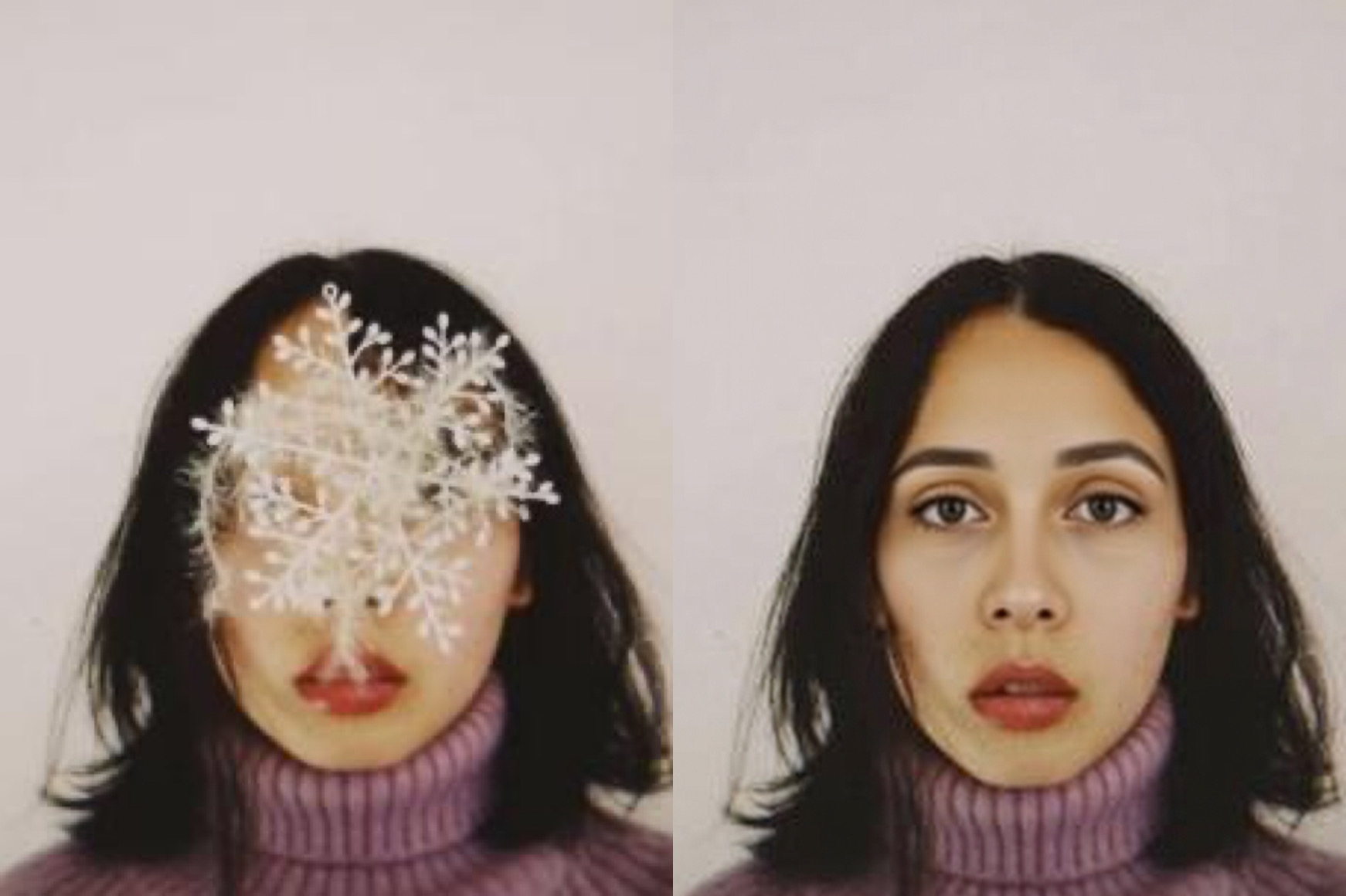
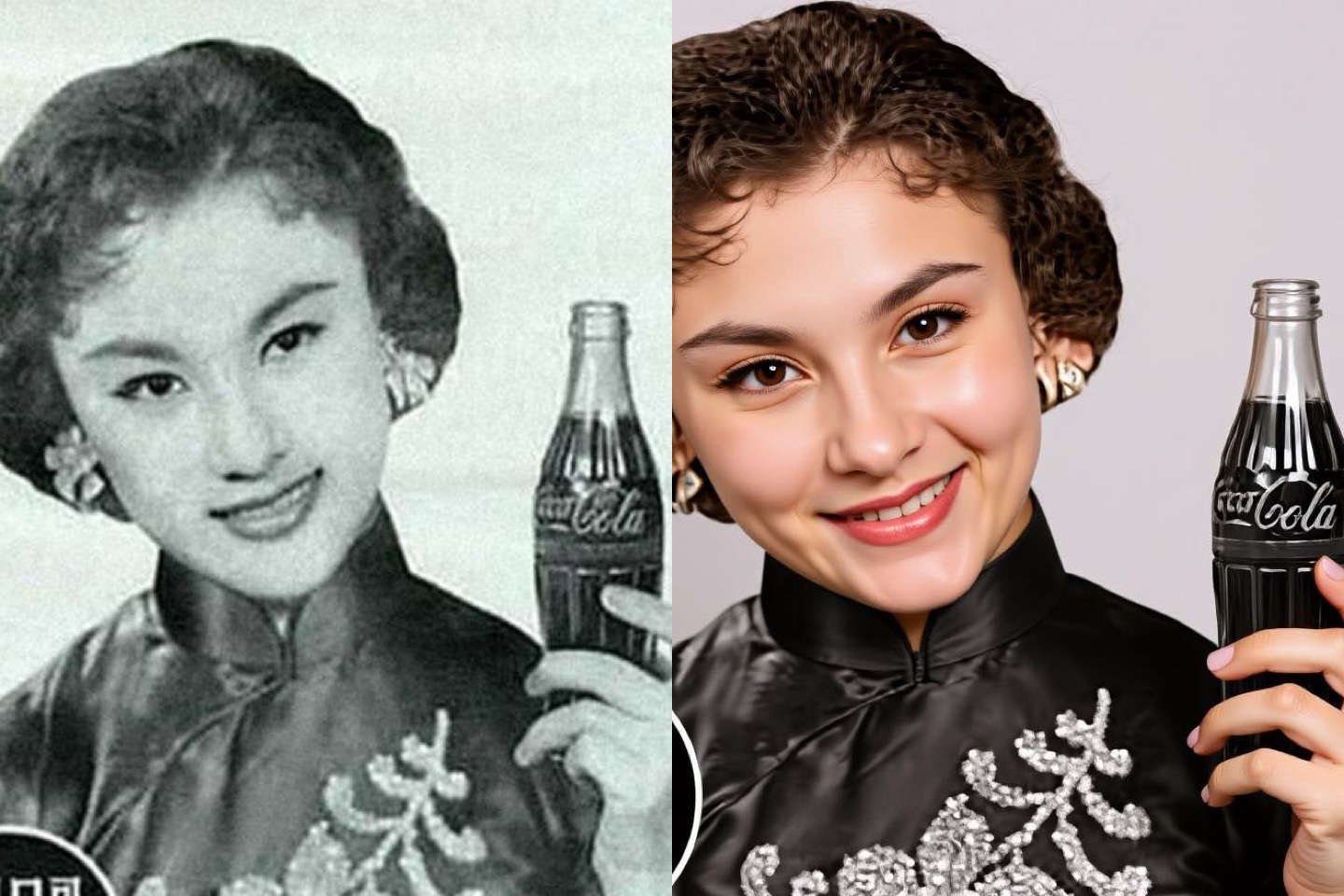

Mind-Blowing AI Tools You Can Use Right Now!
Discover four powerful AI tools—OmniAvatar, EasyEdit, DAM, and Dreamface—for realistic avatars, image editing, and visual descriptions.
By Chloe 一 Jul 01, 2025- Avatar Video
- AI Video
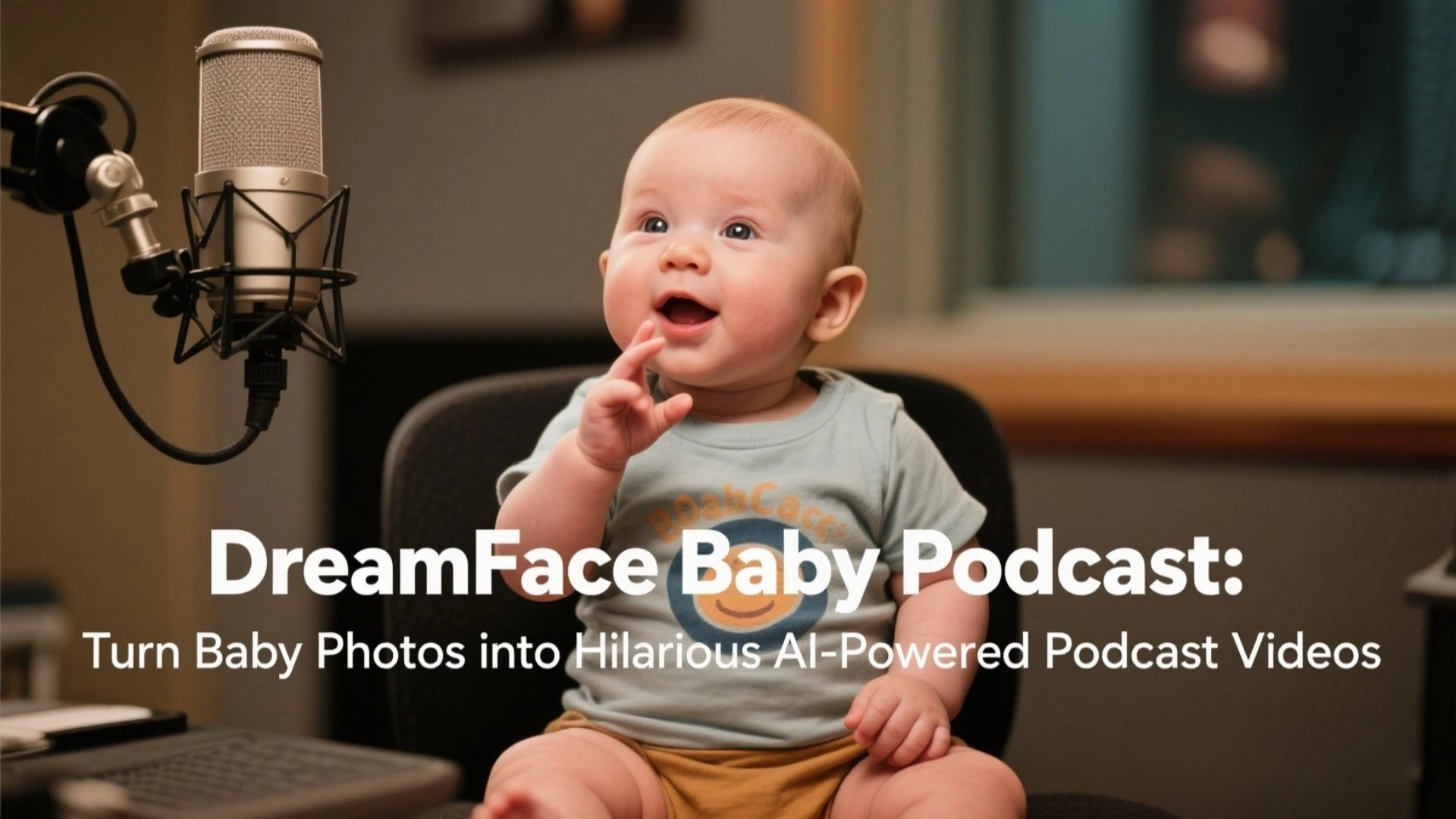
DreamFace Baby Podcast: Turn Baby Photos into Hilarious AI-Powered Podcast Videos
Enter DreamFace’s Baby Podcast, an AI-powered tool that lets you transform a single baby photo into a laugh-out-loud podcast-style video.
By Chloe 一 Jul 01, 2025- Baby Podcast
- Advanced Avatar
- Avatar Video
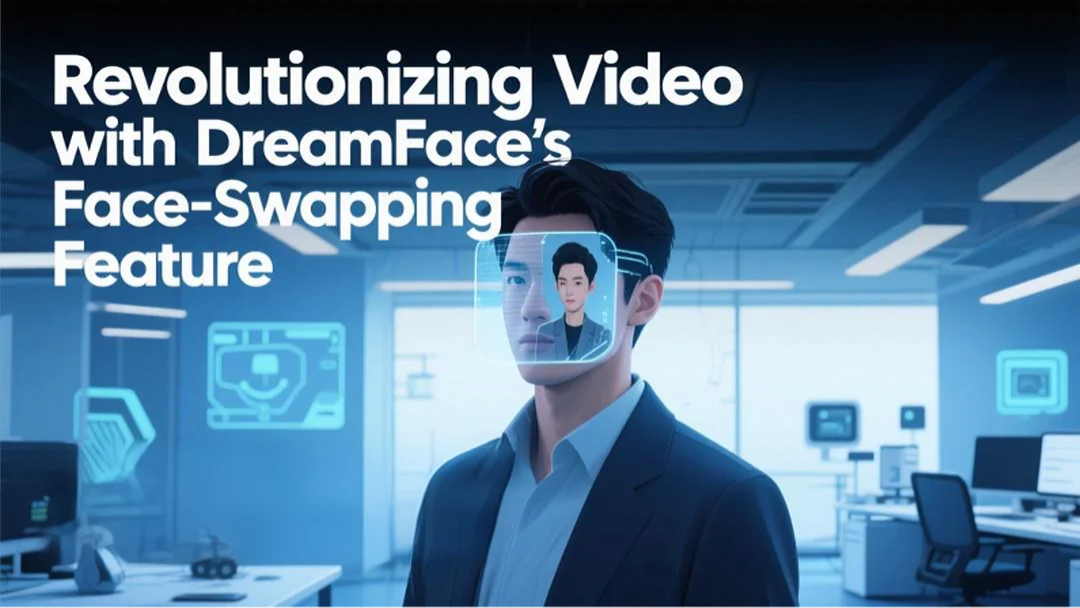
Face Swap Revolution: Transform Your Videos with DreamFace’s Cutting-Edge Feature
Using advanced facial recognition, alignment, and blending algorithms, DreamFace can accurately map a new face onto the existing video
By Chloe 一 Jul 01, 2025- Face Swap
- AI Video
- Avatar Video
- X
- Youtube
- Discord